
Get Pro Marketing Images Every Time: Your Guide to Prompting Gemini Nano Banana Pro
As a solopreneur or creator, you know the feeling: you need a great image for an ad, a blog post, or a social campaign, but your AI image generator gives you a different result every single time.
One day it’s perfect, the next it’s completely off-brand.
This inconsistency is frustrating and wastes valuable time.
This post gives you a repeatable system for generating professional, on-brand marketing assets with Gemini Nano Banana Pro.
We’ll cut through the trial-and-error and give you a standard operating procedure for consistent success.
By the end, you will have a reusable prompt template, practical examples, and a simple checklist to get it right, every time.
First, Know Your Tool: Nano Banana vs. Nano Banana Pro
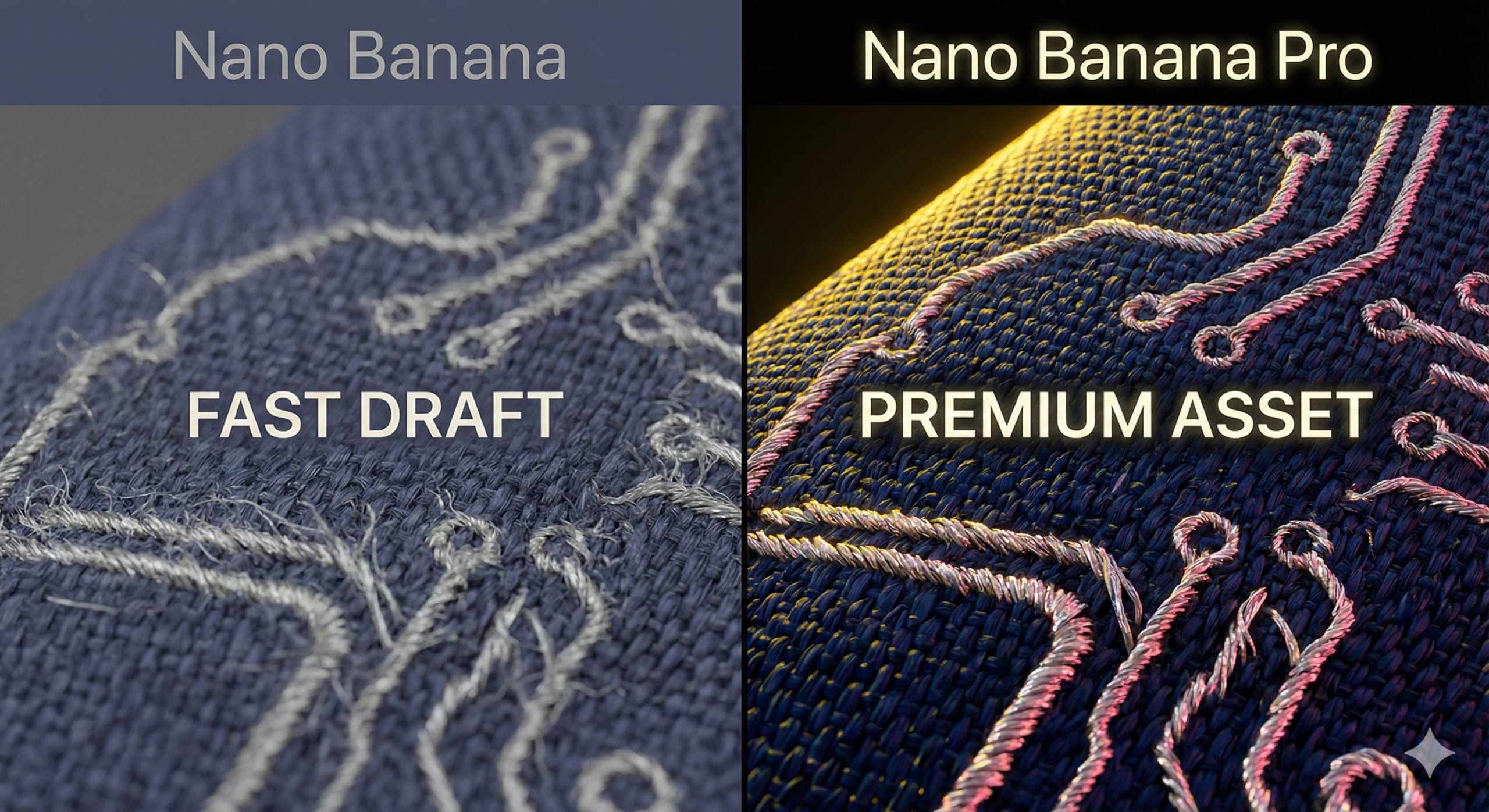
Before we dive in, let’s clarify the names.
In the Google ecosystem, you have two tiers of image models, each with a community nickname:
- Nano Banana is the nickname for Gemini’s “Fast” image model (built on Gemini 2.5 Flash).
- Quick, great for rapid ideation, and handles simple edits well.
- Nano Banana Pro is the nickname for the advanced “Thinking” model (built on Gemini 3 Pro).
- Designed for professional work.
- Built for higher resolutions (2K/4K), advanced text rendering, and complex reasoning.
As a solopreneur managing resources, it’s also important to know the access tiers.
The free tier typically gives you about two Pro generations per day, which includes a visible watermark.
Paid tiers unlock much higher daily limits and remove the visible watermark, making them essential for professional marketing asset creation.
The TL;DR: Your Go-To Prompt Formula
The “Just Give Me the Formula” Section
Your Default Prompt Formula
- Subject: Describe your main character or object with 2–3 key, unique details.
- Action: What is the subject doing?
- Composition: Describe the shot type, angle, and lighting (e.g., “Wide-angle shot, cinematic golden hour lighting.”)
- Style: Define the aesthetic (e.g., “Photorealistic, 1990s product photography style.”)
- Constraints: List 1–2 non-negotiables (e.g., “Must include our brand colors: #D7FF28, #000000.”)

Product Mockup Example
A high-resolution, studio-lit product photograph of a minimalist ceramic coffee mug in matte black on a polished concrete surface.
- The lighting is a three-point softbox setup to eliminate harsh shadows.
- Sharp focus on the steam rising from the coffee.

Infographic Element Example
A clean, modern infographic illustrating the water cycle.
- Include arrows showing evaporation, condensation, and precipitation.
- Use a flat design with a simple blue and white color palette.
Know Your Tool: Strengths and Limitations of Nano Banana Pro
To get the most out of Nano Banana Pro, you need to understand its strengths and weaknesses.
Think of it as a highly skilled but very literal junior designer—it needs clear instructions to do its best work.
Where It Shines
- Professional Resolution: Generates high-resolution images (2K and 4K) suitable for print, web, and professional campaigns.
- Accurate Text Rendering: Improved text capabilities for infographics, headlines, and legible words.
- Real-World Grounding: Can connect to Google Search to generate images based on real-time data (e.g., current events or product info).
- Brand and Character Consistency: Strong at maintaining a character/brand element across images, especially with a reference image.
- Realistic Physics: Better lighting, shadows, depth of field, and material textures.
Where It Can Stumble
- Complex Stylization: Mixing too many styles can cause inconsistency.
- Complex Typography: Can still misspell or struggle with ornate font requests.
- Automatic Consistency: Character consistency isn’t 100% automatic—prompting techniques help lock features.
- Aspect Ratios: Can drift without clear, repeated aspect-ratio instructions.
The Professional Workflow: Iterate, Don’t Start Over
The most effective workflow is to treat the AI like a designer you’re giving feedback to.
This “conversational editing” approach separates amateur results from professional outputs.
Start with a prompt to get a good base image, then refine with small “delta prompts” like: “Keep that image, but change the background to blue.”
The Pre-Prompt Blueprint: 4 Inputs for Predictable Results
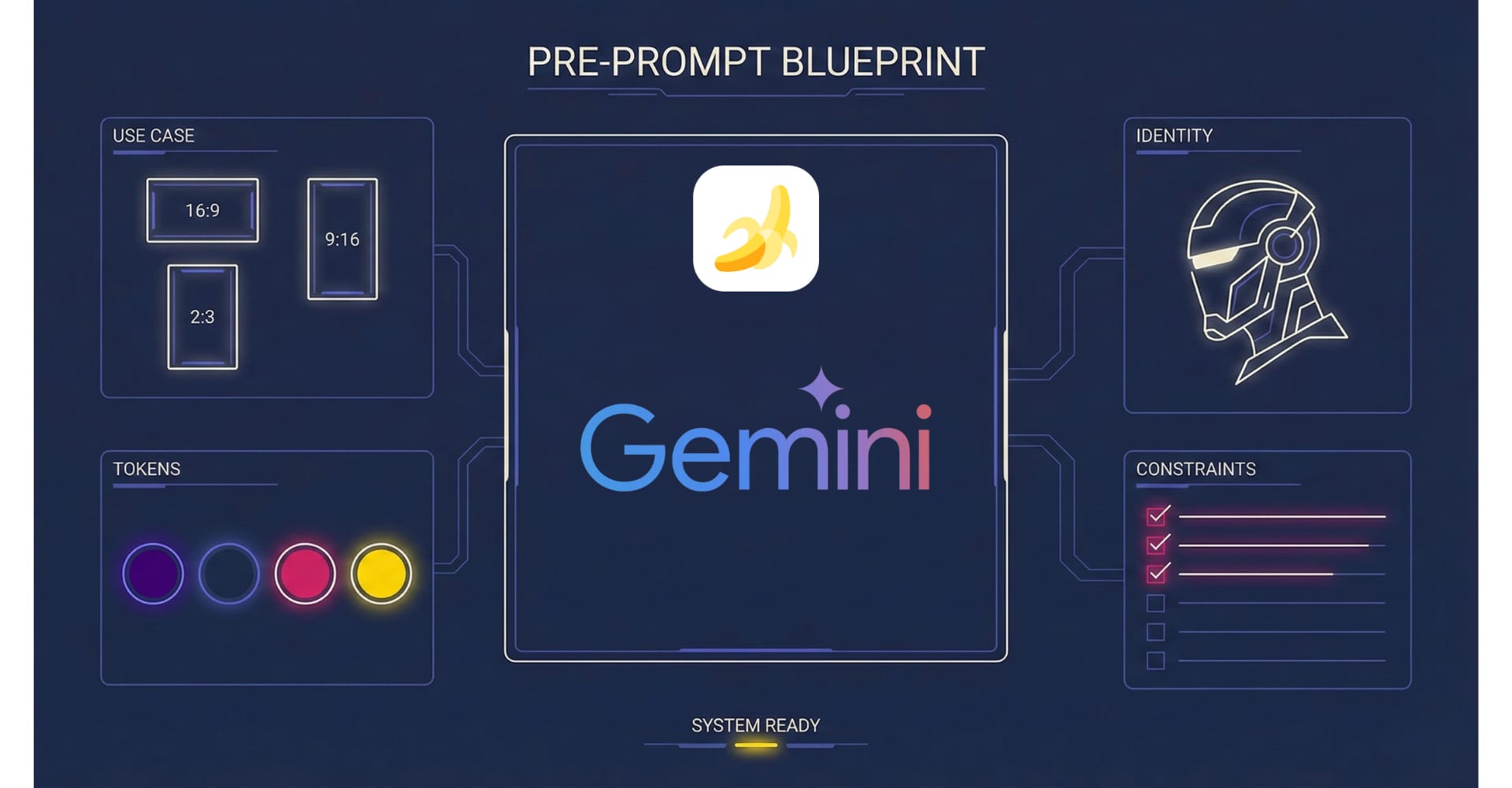
Getting repeatable, professional results starts before you type a single word.
Having these four inputs ready will make your entire process faster and more consistent.
-
Define Your Use Case and Aspect Ratio
Know where the final image will live. A YouTube thumbnail (16:9) has different needs than a Pinterest Pin (2:3) or an Instagram story (9:16).
Specifying the use case and aspect ratio from the start helps the model compose correctly and avoids wrong dimensions.
-
Clarify Your Subject’s Identity
Your prompt needs a single, clear focal point. Vague subjects produce vague results.
Instead of “a person,” get specific: “a stoic robot barista with glowing blue optics.”
-
Gather Your Brand Tokens
“Brand tokens” are recurring brand elements: hex colors, logo description, style cues like “minimalist, lots of whitespace.”
Keep these in a note you can copy/paste to speed up consistent asset creation.
-
List Your Output Constraints
Constraints are your non-negotiables—must-haves and must-avoids that keep visuals on-brand.
Examples: required background color, lighting style, or negative space for text overlays.
The DFC Prompt Stack: Your Standard Operating Procedure
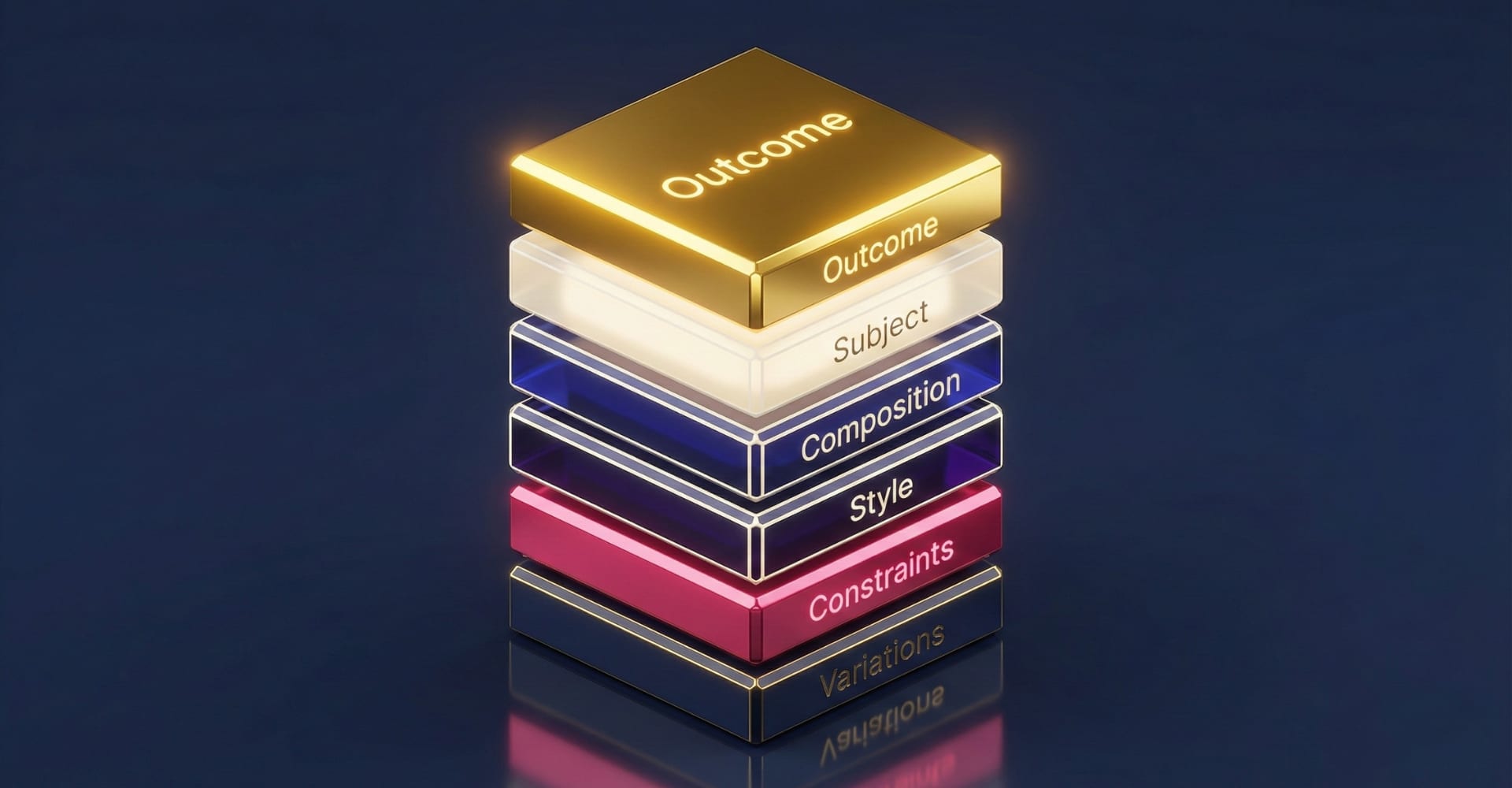
To ensure repeatable success, use a structured prompt format we call the DFC Prompt Stack.
It layers instructions from the highest-level goal down to fine details, giving the model a clear blueprint.
-
A) Outcome: State the high-level goal of the image (e.g., “A hero image for a website,” “An ad creative for a social media campaign.”)
-
B) Subject: Describe the main focus with specific, unique details.
-
C) Composition: Define camera shot, angle, and framing using photography terms (e.g., “Extreme close-up,” “Low angle shot,” “Centered portrait.”)
-
D) Style: Define the overall aesthetic (e.g., “3D animation,” “watercolor painting,” “photorealistic,” “1940s film noir.”)
-
E) Constraints: List strict guardrails (must include / must avoid) (e.g., “Must use #HEX1 and #HEX2. Must avoid text.”)
-
F) Variations (Optional): Request controlled variations (e.g., “Generate a variation where only the subject’s shirt color changes.”)
High-Performing Prompt Patterns
Here are four battle-tested patterns you can adapt for common marketing needs.
The Product Mockup
Template
- A high-resolution, studio-lit product photograph of a [PRODUCT DESCRIPTION] on a [BACKGROUND SURFACE/DESCRIPTION].
- The lighting is a [LIGHTING SETUP] (e.g., three-point softbox setup).
- The camera angle is a [ANGLE TYPE] to showcase [SPECIFIC FEATURE].
- Ultra-realistic, with sharp focus.
Example
- A high-resolution, studio-lit product photograph of a glass bottle of face serum with a white dropper cap, on a clean white marble surface.
- Softbox lighting to create soft highlights.
- 45-degree shot to showcase the label, shot on an 85mm lens with shallow depth of field.
- Sharp focus on the label text.
Why It Works: Photography terms (“studio-lit,” “softbox,” lens + DOF) guide commercial-grade results.
DFC Use Cases: E-commerce stores, Ad creatives, Lead magnet covers.

The Clean Infographic
Template
- An educational infographic with the title: “[TITLE]”.
- Create [NUMBER] sections.
- Section 1: “[SECTION_1_HEADER]” illustrating [SECTION_1_CONTENT].
- Section 2: “[SECTION_2_HEADER]” illustrating [SECTION_2_CONTENT].
- Style: [STYLE] (e.g., minimalist flat design with a limited color palette of #HEX1, #HEX2, #HEX3).
- All text must be in a clean, sans-serif font.
Example
- An educational infographic with the title: “The Pomodoro Technique”.
- Create 4 sections.
- Section 1: “Set a Timer” showing a 25-minute timer icon.
- Section 2: “Work Focused” showing a person at a desk without distractions.
- Section 3: “Take a Short Break” showing a coffee cup icon with a 5-minute timer.
- Section 4: “Repeat & Rest” showing four pomodoros followed by a longer break.
- Style: minimalist flat design with #FF6347, #FFFFFF, #333333.
- All text must be in a clean, sans-serif font.
Why It Works: Structured prompts help the model map concepts into a clear visual narrative.
DFC Use Cases: Blog post visuals, Educational lead magnets, SOP visuals.

The YouTube Thumbnail
Template
- A YouTube thumbnail image, 16:9 aspect ratio.
- Subject: A high-energy, expressive photo of [SUBJECT_DESCRIPTION] with a surprised expression.
- Background: A high-contrast [BACKGROUND_CONCEPT] with subtle motion blur.
- Lighting: Bright and dramatic to make the subject pop.
- Constraint: Leave negative space on the right for text.
Example
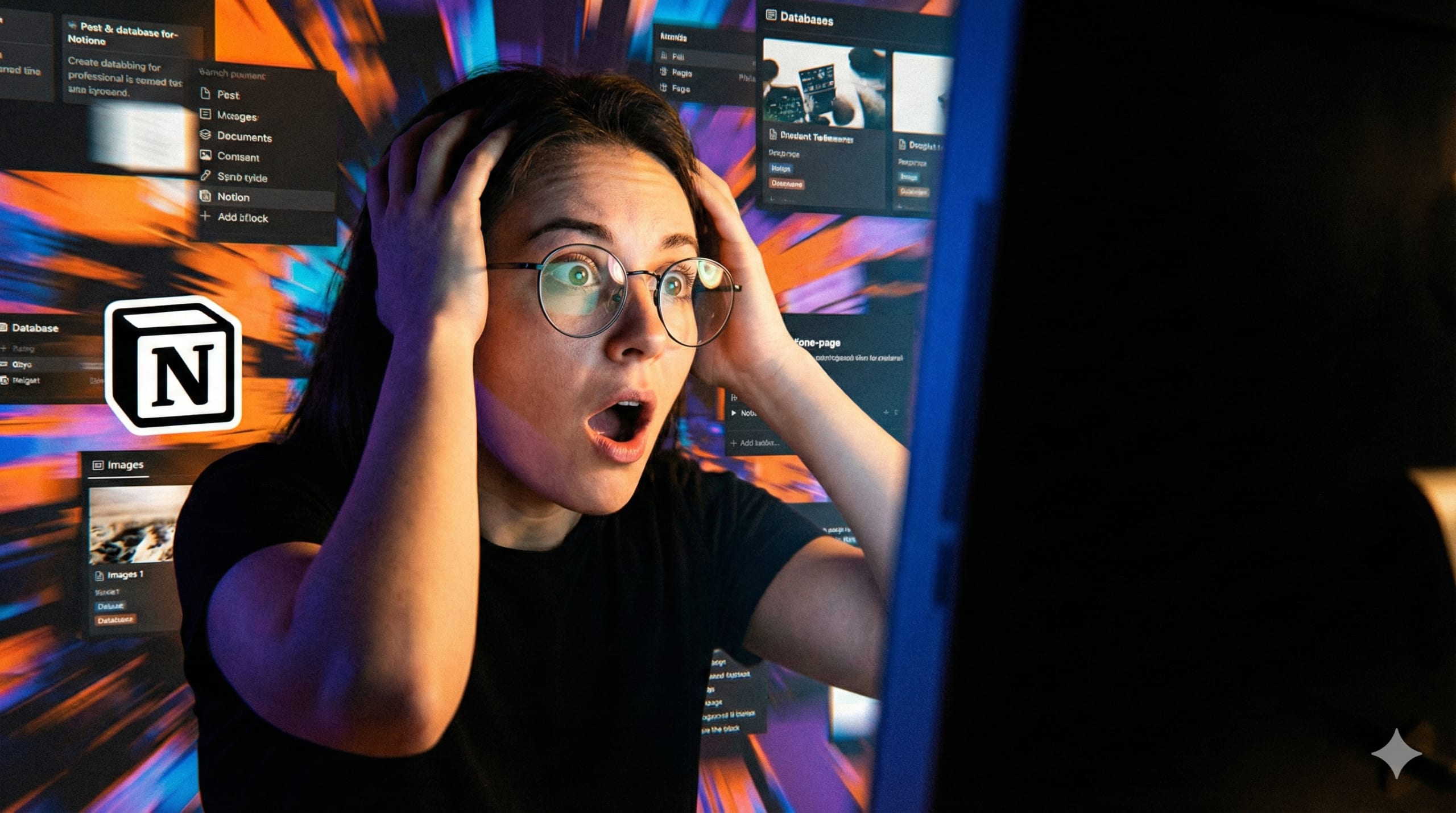
- A YouTube thumbnail image, 16:9 aspect ratio.
- Subject: A high-energy, expressive photo of a woman with glasses looking shocked at a computer screen.
- Background: A high-contrast abstract graphic of Notion app blocks with subtle motion blur.
- Lighting: Bright and dramatic to make the subject pop.
- Leave negative space on the right for text.
Why It Works: High-contrast + one clear focal point + strong emotion reads at small sizes.
DFC Use Cases: YouTube videos, Featured images, Course module icons.
The Brand-Consistent Character
Template
- Using the provided reference image of [character name], show them [action].
- Keep their facial features exactly the same as their reference images.
- Composition: [composition + style details].
Example
- Using the reference image of our mascot, “Sparky the Robot,” show them writing at a modern desk with a laptop.
- Keep their facial features exactly the same as their reference images.
- Composition: Medium shot, bright clean office lighting, photorealistic 3D animation style.
Why It Works: A strict “lock features” constraint preserves the character’s visual DNA across assets.
DFC Use Cases: Social campaigns, Email visuals, Training materials.

The DFC Iteration Protocol: How to Refine Images Like a Pro
Never start over.
The best results come from refining a “good enough” first draft.
Use this simple 3-pass workflow to dial in your perfect image.
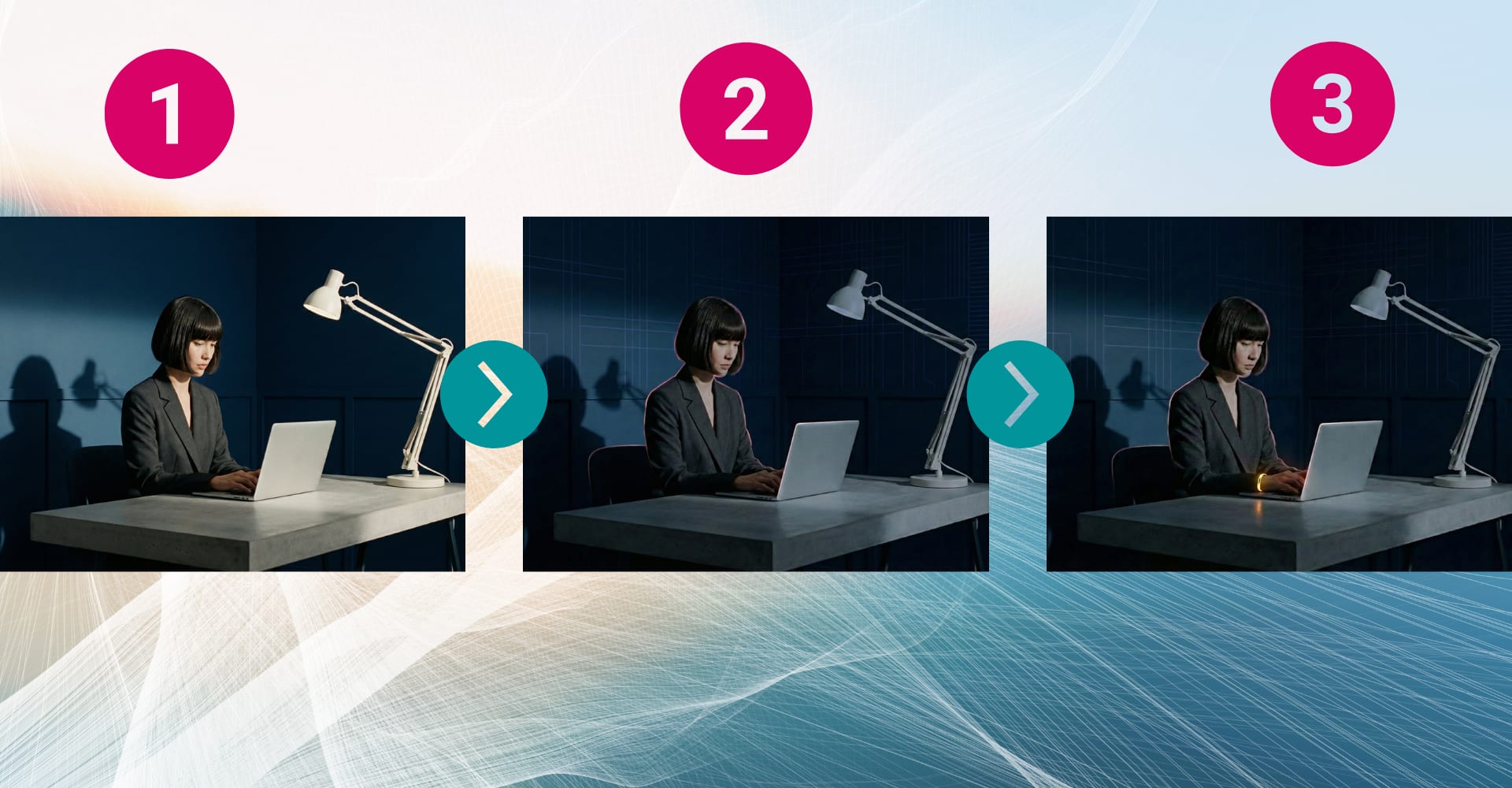
First, focus only on getting the composition right. Once the subject and layout are locked, you can change style, lighting, and details with follow-up prompts.
-
1. Lock the Composition. Focus on subject, action, and camera shot. Don’t worry about style or color yet.
Example: “A medium shot of a woman with a sleek bob haircut sitting at a minimalist desk. The room has dark Space Cadet walls. She is looking at a laptop. The primary light source is a clean Eggshell desk lamp casting sharp shadows. The composition is strictly grid-based.”
-
2. Refine Style and Lighting. Keep composition the same; change aesthetic.
Example: “Keep the exact composition and subject. Change the lighting style to a minimal cyberpunk aesthetic. The background Space Cadet walls now have very subtle, thin glowing Indigo line patterns. A faint Dogwood Rose rim light touches the woman’s shoulder and the edge of the laptop, separating her from the background. The overall feel is intelligent and quiet.”
-
3. Adjust the Details. Make small tweaks.
Example: “Keep the exact composition, lighting, and neon aesthetic of the previous image. Change only one detail: The woman is now wearing a subtle, glowing Gold (#FFD700) wrist cuff that catches the light.”
The DFC Delta Prompt
For later refinements, use this template:
Keep everything the same from the previous image, but change only [one specific thing] to [the new description].
Troubleshooting Common Glitches
-
Problem: The text in my image is misspelled or garbled.
Fix: Put the exact text in quotation marks. Add: “All text must be sharp and readable, as if designed in professional layout software.”
For critical work, generate without text and add typography manually for full control.
-
Problem: The image is too busy or the layout is messy.
Fix: Add a composition instruction with a clear focal point (e.g., “A minimalist composition with significant negative space.”)
-
Problem: People have plastic/waxy skin.
Fix: Add: “Natural skin texture with subtle pores, no beauty filter.”
-
Problem: Colors don’t match my brand.
Fix: Use hex codes. Add: “Use only this color palette: #D7FF28, #000000, #FFFFFF.”
-
Problem: Character’s face changes between images.
Fix: Upload a clean, front-facing reference and add: “Keep their facial features exactly the same as their reference images.”
Copy-Paste Templates for Your Workflow
General Purpose Template
Outcome: [High-level goal].
Subject: [Specific subject description].
Composition: [Shot type, angle, lighting].
Style: [Aesthetic description].
Constraints: [1–2 must-haves or must-avoids].
Pinterest Infographic Template
Outcome: A tall infographic for Pinterest, 2:3 aspect ratio.
Title: “[Infographic Title]”.
Create 4 sections with bold sans-serif headers.
Section 1: “[Header 1]” showing [content].
Section 2: “[Header 2]” showing [content].
Section 3: “[Header 3]” showing [content].
Section 4: “[Header 4]” showing [content].
Style: Flat design illustration with a color palette of [#HEX1, #HEX2, #HEX3].
YouTube Thumbnail Image Template
Outcome: A YouTube thumbnail image, 16:9 aspect ratio.
Subject: An expressive photo of a [person] with a [emotion] expression.
Background: A high-contrast, slightly blurred [background concept].
Lighting: Dramatic and bright to make the subject pop.
Constraint: Leave negative space on the [left/right] for a text overlay.
Website Hero Image Template
Outcome: A minimalist website hero image, 16:9 aspect ratio.
Subject: A single [object or person] positioned in the [bottom-right/top-left] of the frame.
Background is a vast, empty [color] canvas, creating significant negative space for a headline.
Lighting is soft and subtle.
Ad Creative Template
Outcome: A square ad creative for social media.
A high-resolution, studio-lit photograph of [product].
Background is a clean, solid color [#HEXCODE].
Lighting is bright and even to eliminate harsh shadows.
Leave ample negative space at the top for a headline.
Your Pre-Generation Quality Checklist
Review this list before you hit “generate” to save time and improve your results.
☐ One Sentence Goal: Is the image’s purpose clear?
☐ One Core Subject: Is there a single, clear focal point?
☐ One Composition Rule: Is there one primary instruction for camera/framing?
☐ One Style Directive: Is there one primary aesthetic? (Avoid mixing styles like “photorealistic cartoon”.)
☐ Max 3 Constraints: Are you limiting must-haves to only the critical ones?
☐ Remove Vague Words: Have you replaced “nice/cool” with specific descriptions?
Wrap-Up and Your Next Step
The key to getting professional, repeatable results from AI image generation isn’t magic, it’s structure.
By shifting from simple keywords to a system like the DFC Prompt Stack, you give the model clear instructions for consistent, on-brand assets every time.
Try This Next
Pick one of the templates. Generate an image for your business, then use the DFC Iteration Protocol to create three variations by changing only the lighting.
Save your favorite one to start building your personal style library.
Now it’s your turn. Test out these templates and see how a structured approach can transform your marketing visuals.

About the Author
Marius is the founder of Digital Flow Craft, helping solopreneurs, digital marketers and small business owners leverage AI and automation to scale efficiently.